Windows · Offline · Single User · Free

Click. Install. Make music.

The full StemTube audio engine — stems, chords, beats, lyrics, mixer — packaged as a single 1.4 MB Windows installer. The engine downloads itself on first launch. After that, everything runs offline on your machine.

v2.0.0 · 1.4 MB installer · Windows 10/11 x64 · ~3-8 GB after first-launch download

1.4
MB installer
170
Chord Types
0
Cloud Dependency
MIT
License

What StemTube Desktop does

Local-first audio analysis. Upload your own files, run everything on your own machine. No account, no telemetry, no internet required after install.

AI Stem Separation

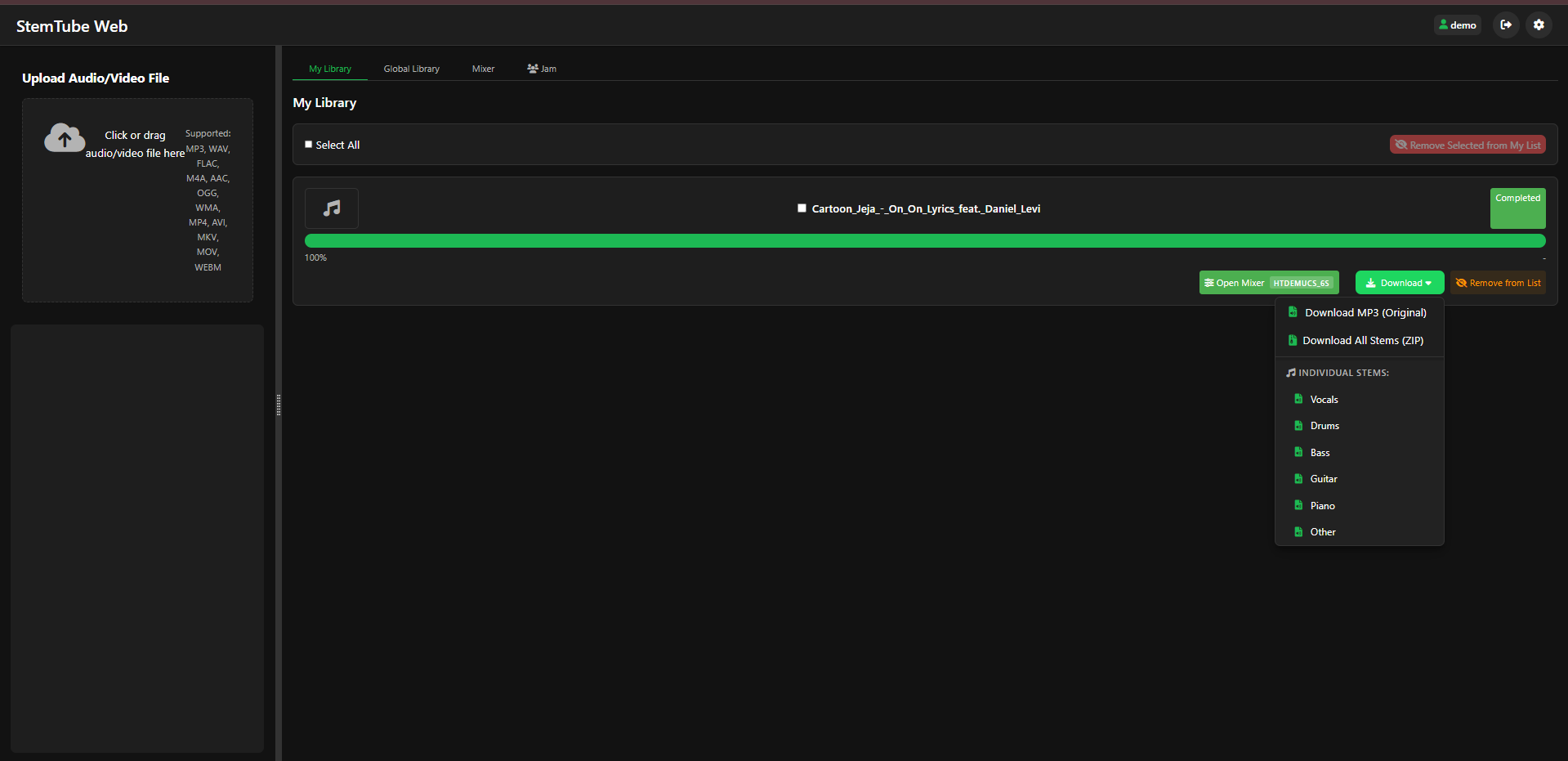
Split any song into vocals, bass, drums, guitar, piano and "other" using Demucs htdemucs_6s. NVIDIA GPU acceleration with CUDA, automatic CPU fallback.

Chord Detection

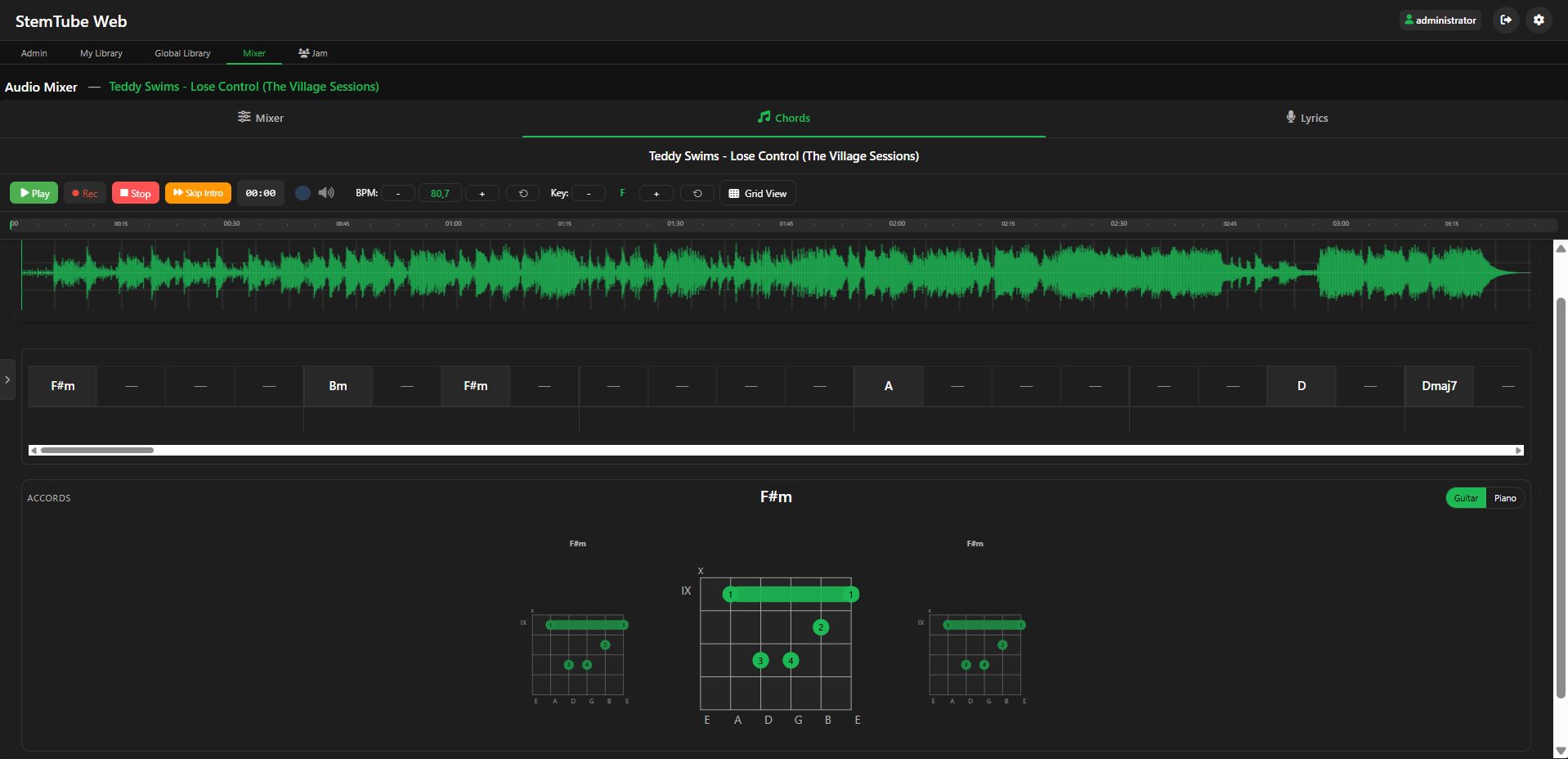
Hybrid BTC Transformer + madmom CRF pipeline detecting 170 chord types. Real-time chord display with guitar diagrams synchronized to playback.

Beat Tracking

madmom CNN + DBN downbeat detection. Detects beats and bar positions (1/2/3/4). Tap-sync to nudge the grid manually if needed.

Lyrics Transcription

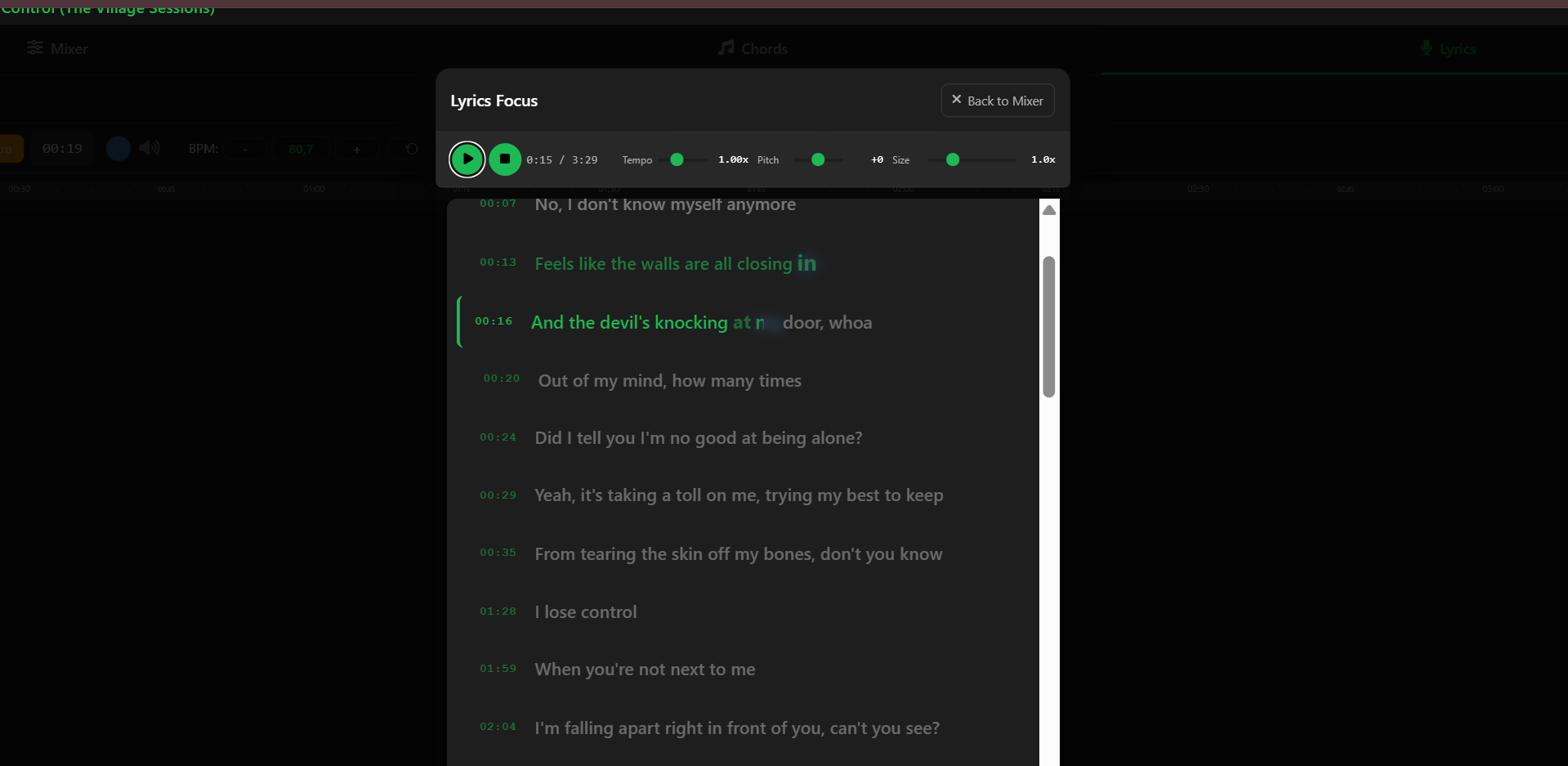
faster-whisper with word-level timestamps and karaoke-style highlighting. Dedicated Focus mode for distraction-free practice.

Full Mixer

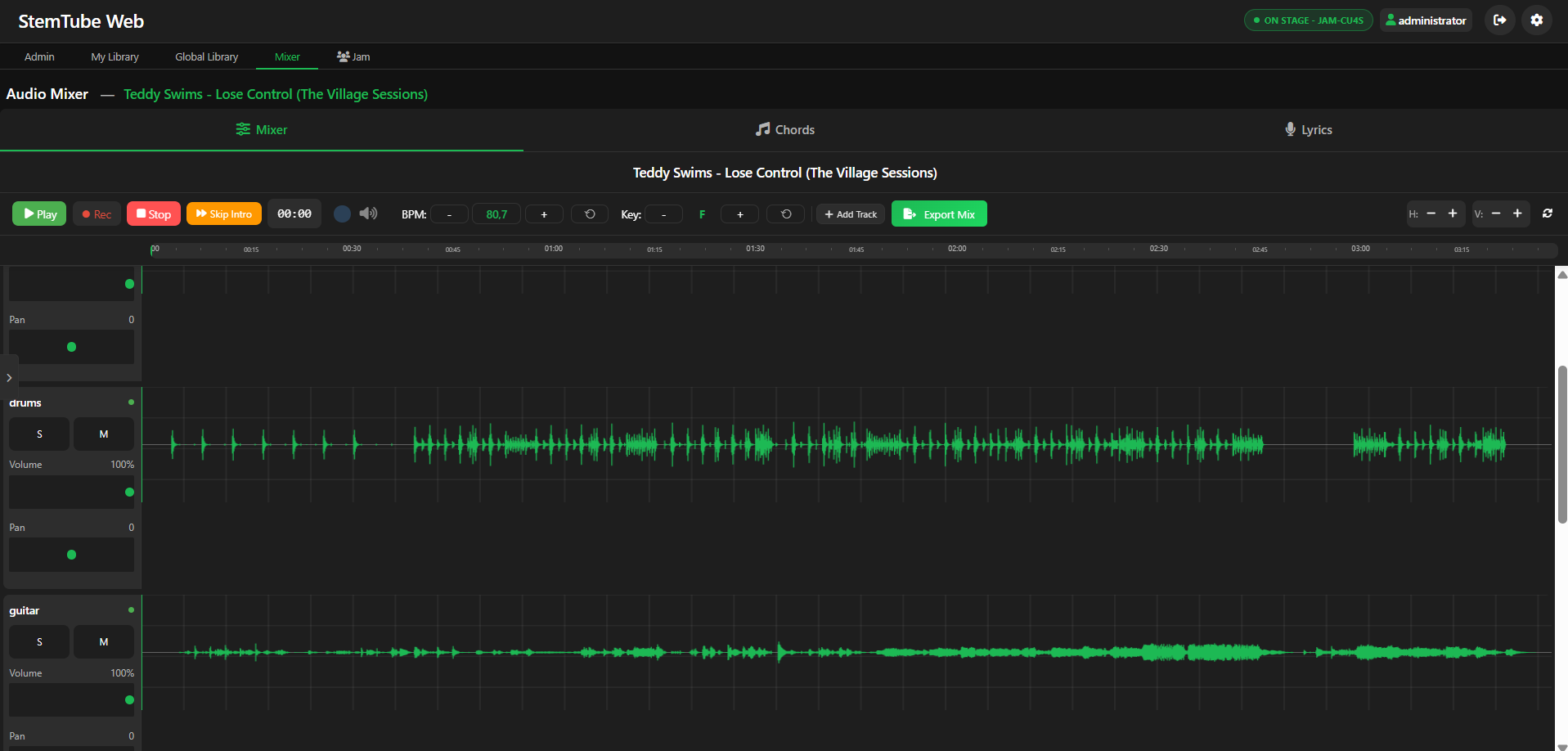
Per-stem volume, pan, mute and solo. Tempo adjustment with pitch correction (SoundTouch). Waveform with playhead scrubbing.

Local & Private

Single-user, no account, no telemetry. Audio files never leave your machine. After first-launch download, the app works fully offline.

From installer to mixer in three steps

Install (1.4 MB)

Download the installer and run it. On first launch, the app fetches its 0.5-2.9 GB engine (Python + PyTorch + CUDA + Demucs + madmom + Whisper) from GitHub. Once. After that, launches are instant.

Upload a track

Drop any MP3, WAV, FLAC, M4A or other audio file. Demucs separates stems, BTC + madmom detect chords and beats, Whisper transcribes lyrics. All in parallel, all local.

Mix and practice

Open the mixer: mute the guitar and play along with chord diagrams in real time, slow down the tempo without changing pitch, switch to karaoke focus to learn the lyrics.

Install on Linux

On Ubuntu/Debian, download the installer package and double-click it — like the Windows .exe. StemTube lands in your apps menu; the first launch detects your hardware and downloads the matching engine (CPU or NVIDIA GPU). On other distros, run the self-contained engine directly.

Ubuntu / Debian — download & double-click

An installer package — the Linux equivalent of the Windows .exe. Double-click it to install, then launch StemTube Desktop from your apps menu. The first launch detects your GPU and downloads the right self-contained engine.

Download the .deb installer
  1. Install it: double-click the downloaded stemtube-desktop_2.1.0_amd64.deb. It opens in your software installer (e.g. App Center / Software Install) — click Install and enter your password. (Or in a terminal: sudo apt install ./stemtube-desktop_2.1.0_amd64.deb.)
  2. Launch it: open your applications menu, type “stem”, and click the StemTube Desktop icon.
  3. First launch downloads the engine. A small window appears while it fetches the matching engine — CPU ~600 MB or NVIDIA GPU ~3 GB. This is a one-time download and can take several minutes depending on your connection; the app window opens once it finishes. Later launches start in seconds.

Nothing else to install — the engine bundles Python, PyTorch and FFmpeg. It lives in your home folder; no system changes, no root at run time.

Other distros (Fedora, Arch, openSUSE…) — run the engine directly

No package manager needed. Each engine is a single self-contained AppImage (Python, PyTorch, FFmpeg bundled) that runs on any 64-bit Linux.

CPU (~560 MB) GPU version (NVIDIA)
chmod +x StemTube-x86_64-cpu.AppImage
./StemTube-x86_64-cpu.AppImage --appimage-extract-and-run

--appimage-extract-and-run means no libfuse2 is needed. The GPU version (~3 GB) comes in two parts — join them with cat StemTube-x86_64-gpu.AppImage.part* > StemTube-x86_64-gpu.AppImage.

64-bit Linux (glibc 2.35+) · NVIDIA GPU optional (CUDA accelerated), otherwise CPU. Needs an AVX-capable CPU — run it on real hardware; a VM that masks AVX will fail (PyTorch requires it).

Developers: a from-source install script is also available (builds a Python env; requires Python 3.10–3.13).

See it in action

Native Windows app, full audio engine, designed for musicians.

Stem extraction interface
Stem Extraction — AI separation into 6 stems with per-stem download
Chord detection grid
Chord Detection — real-time chord grid with guitar fingering diagrams
Focus lyrics view
Lyrics Focus — word-by-word karaoke highlighting with tempo control
Main mixer
Main Mixer — per-stem controls, waveform, transport, and analysis pane
Need more than one user, or mobile access?

There's a self-hosted server edition

Same audio engine, plus: multi-user with per-account libraries, mobile PWA on iOS and Android, real-time jam sessions, shared global library, optional YouTube import. Runs on Linux, Windows or macOS — Python 3.12 setup script included.

  • Mobile PWA (iOS & Android)
  • Multi-user with admin panel
  • Jam sessions with synchronized playback
  • Shared global library across users

A side project that grew up

StemTube started as a vibe-coding experiment — what happens when you let AI-assisted development guide the process without a rigid plan? What was meant to be a weekend hack turned into a full music workstation.

The Server edition (self-hosted, multi-user, mobile PWA, jam sessions) is the original. This Desktop edition packages the same engine for people who just want to double-click an installer and have it work. No Python knowledge required, no network setup, no account.

After 25 years in IT, I wanted to give back to the open-source ecosystem that gave me so much throughout my career. StemTube is that contribution — imperfect, evolving, and open to everyone.

Everything is open source — the Tauri shell, the Python backend, the audio pipeline. No tracking, no account required, no cloud dependency. Your music, your machine.

Ready to try it?

Download the installer, double-click, wait for the engine to download on first launch, and start mixing.

Unsigned installer

The installer is not signed with a Windows code-signing certificate (paid yearly subscription). Windows SmartScreen will display a warning on first launch. Click "More info" then "Run anyway". The installer and the engine zip are both hosted publicly on GitHub Releases for full transparency.